

- Generation and editing in one model: the same weights serve text-to-image prompts and editing instructions, so a workflow does not need to swap checkpoints
- Native 2K output: generate at up to 2048x2048 directly instead of upscaling a smaller result
- Professional typography: dense small text and complex layouts hold up, for infographics, slides, UI mockups, posters, and packaging designs
- Alpha channel support: the VAE carries four channels, so transparent-background images can be generated and edited directly instead of being cut out afterwards
- Multi-image editing: reference images are spliced into the text encoder in slot order. The Text Encode Qwen Image 2.1 node accepts up to 16 slots (
image_1toimage_16); the two edit templates on this page wire the first 10 (image_1toimage_10).image_1is the image being edited and the rest supply content, so the prompt addresses them by index, for exampleimage_1is written as<image1> - Localized edits: describe the object or region to change and the rest of the image is preserved
Qwen-Image-2.1 workflow
Qwen Image 2.1 Text to Image
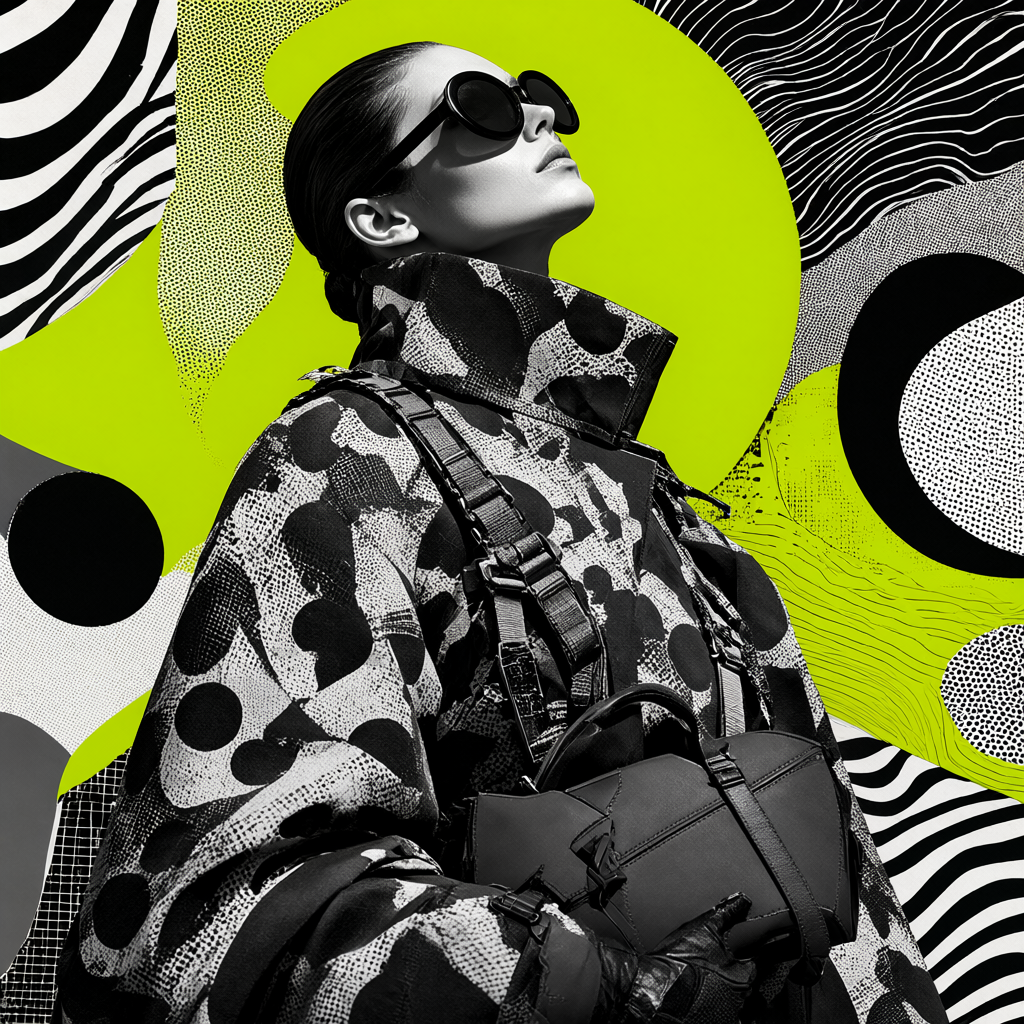
Generate an image from a text prompt at the aspect ratio and megapixel target you select.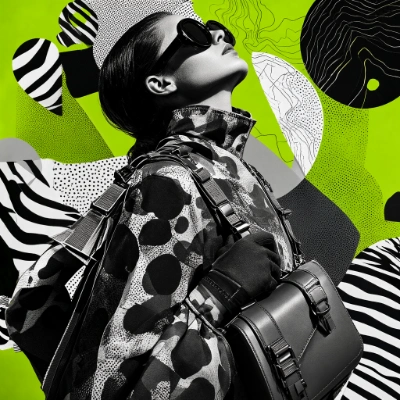
Download Workflow
Download JSON or search “Qwen-Image-2.1” in Template Library
Run on Comfy Cloud
Run ComfyUI online with zero setup
Qwen Image 2.1 Image Edit
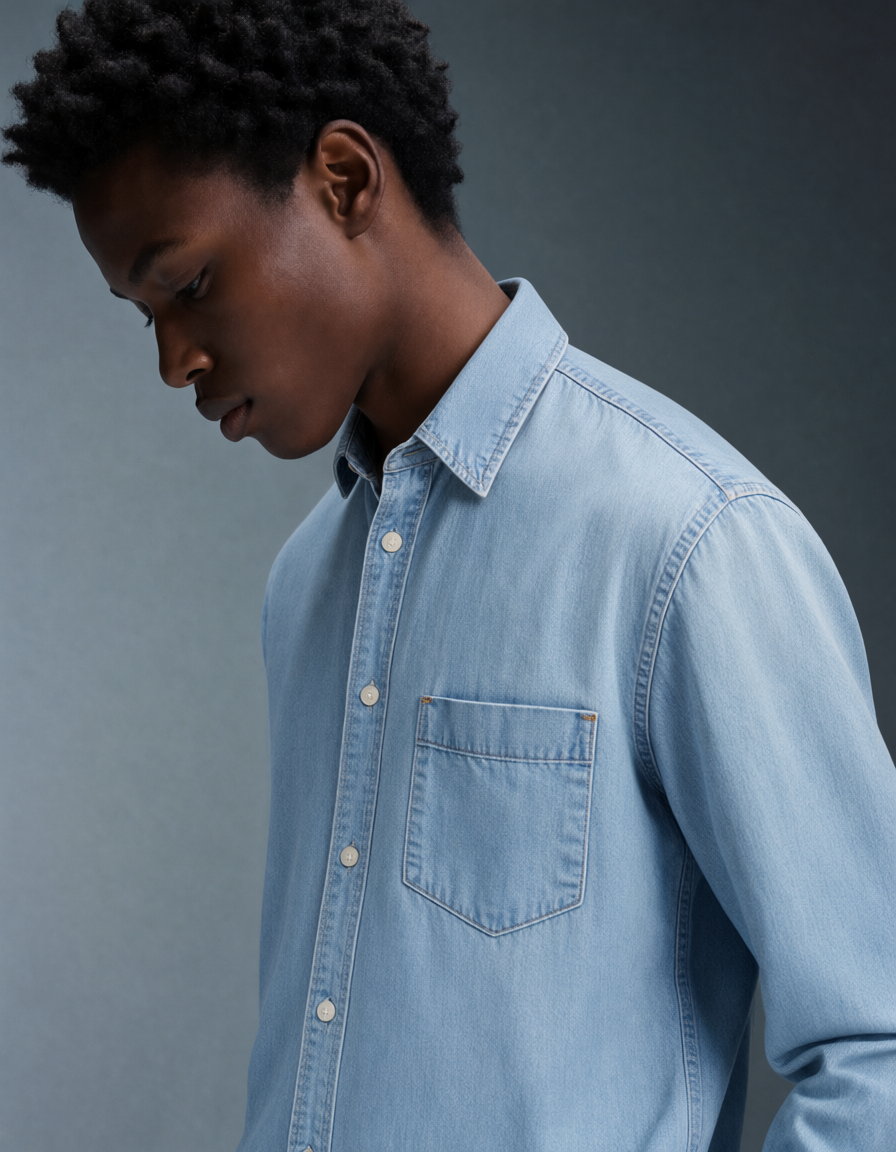
Edit an image with an instruction. Add reference images when the edit needs content that is not in the source image, such as putting a garment from a second photo onto the person in the first.
Download Workflow
Download JSON or search “Qwen-Image-2.1” in Template Library
Run on Comfy Cloud
Run ComfyUI online with zero setup
LoadImage nodes:
portrait_model_denim.png
LoadImage node 470 · portrait_model_denim.pngclothing_light_blue_denim_shirt.png
LoadImage node 475 · clothing_light_blue_denim_shirt.png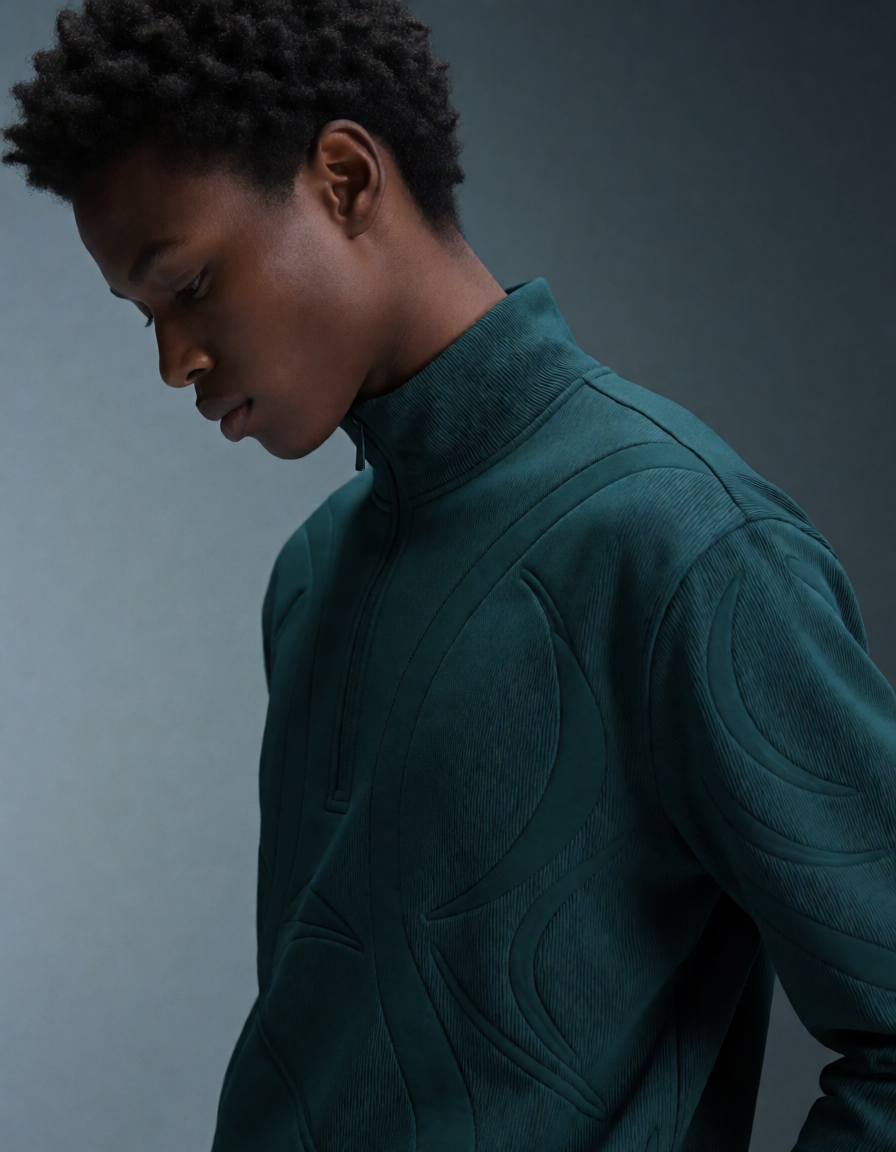
Remove Background: Qwen Image 2.1
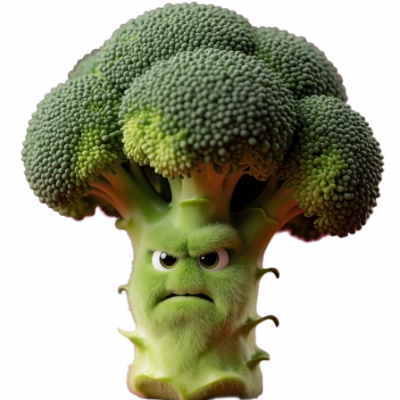
Remove the background from a photo with an edit instruction. The workflow reuses the image edit subgraph with the promptRemove the background, and output a PNG image, then compares the result with the original.
Download Workflow
Download JSON or search “Qwen-Image-2.1” in Template Library
Run on Comfy Cloud
Run ComfyUI online with zero setup
LoadImage node:
angry_broccoli.png
LoadImage node 470 · angry_broccoli.pngModel links
The three workflows share the same diffusion model, VAE, and base text encoder. The text-to-image and image-edit templates each add a separate prompt-enhancement text encoder:qwen3.5_9b_qwen_image_2.1_pe_t2i for text to image and qwen3.5_9b_qwen_image_2.1_pe_i2i for image edit.
text_encoders
- qwen3vl_8b_int8_convrot.safetensors (loaded by the templates, lower memory)
- qwen3vl_8b_bf16.safetensors (full precision, needs more memory)
- qwen3.5_9b_qwen_image_2.1_pe_t2i.int8_convrot.safetensors (prompt enhancement in the text to image template)
- qwen3.5_9b_qwen_image_2.1_pe_i2i.int8_convrot.safetensors (prompt enhancement in the image edit template)
- qwen_image_2.1_int8_convrot.safetensors (loaded by the templates, lower memory)
- qwen_image_2.1_bf16.safetensors (full precision, needs more memory)
Workflow settings
Sampler settings
All three workflows sample withsteps 25, cfg 1, the euler sampler, and the simple scheduler.
At cfg 1 ComfyUI skips the negative conditioning pass, so a negative prompt has no effect on these workflows. The template keeps cfg 1, which is the path Qwen-Image-2.1 is published for; raise it only when you want the negative prompt to take effect. cfg 2 follows dense prompts more closely, including small text and numbers, at the cost of over-sharpened edges. Higher values shift exposure toward over-bright or over-dim, cfg 5 degrades quality badly, and cfg 0.5 breaks the image. Change one value at a time, and compare at a fixed seed.
steps is the second lever. The published pipeline for Qwen-Image-2.1 uses about 40 to 50 steps with the euler sampler, and the template starts lower at 25. Simple localized edits hold up at 4 to 8 steps, so a request such as changing one garment’s color runs several times faster than at the default, while edits that rewrite the whole frame lose coherence and need the full 25. Stubborn fine detail such as hands and fingers settles by about 30 steps, and going from 25 to 40 steps reduces fizzle in detailed areas. Adjust steps only when something specific fails to resolve.
Resolution
Text to image: the Resolution Selector node sets the aspect ratio and a megapixel target, where 1.0 MP is about 1024x1024. Qwen-Image-2.1 generates natively at 2K, so set the target to about 4.0 MP for a 2048x2048 square output. Image edit: the canvas comes from theresolution control on the Image Edit subgraph node (range 0 to 4096, step 32). The node’s own default is 1024, and the template ships 0. With custom_size off, which is the template default, the edit is generated at the size of the first reference image, image_1:
resolution0keeps each reference at its own pixel size, rounded to a multiple of 32, so a 3000x4000 photo gives a 3008x4000 canvasresolutionabove0scalesimage_1’s aspect ratio to aresolutionxresolutionpixel budget, which is a total pixel count rather than a width or height, rounded to multiples of 32, soresolution1024on the same photo gives about 896x1184
custom_size to take the canvas from the Resolution Selector instead, and keep it close to the resized image_1 size, otherwise the edit can shift.
The canvas size is what drives the cost: a 3000x4000 reference with resolution 0 samples at 3008x4000 (about 12 MP), while the same edit at resolution 1024 samples at about 896x1184 (about 1 MP). On an RTX 5090 that is roughly 6 s/it against about 0.3 s/it. Lowering resolution speeds an edit up by generating a smaller result, not by adding detail. If an edit feels slow, check resolution and the pixel size of the reference images before changing anything else. Several large references slow the edit further, and the KV cache settings below affect that cost. Targets well above the model’s 2K trained size, such as 4K, lose prompt adherence.
Prompting for image edit
Reference images are spliced into the text encoder in slot order, and the prompt addresses each one by index:LoadImage node that supplies image_1 (node 470: right-click the node, then Open in Mask Editor), paint over the region with the Paint Pen, and save. Paint Pen strokes go on the image’s RGB layer rather than into the mask, so saving writes the marked image back into the node and the marks become part of the reference the edit reads. Naming the mark’s color in the prompt points the instruction at that region, for example “change the jacket in the red area”. Keep the mark inside the region you want changed, and state the color you want in the prompt as well when the mark’s color appears in the output.
KV cache
The edit workflows include the Qwen Image 2.1 Cache node, which keeps the cached text and reference prefix in memory between sampling steps. The template defaults work for most setups. The node is experimental, and it exposes two controls:Prompt enhancement
The text to image and image edit templates include an optional prompt enhancement step. A dedicated text encoder rewrites the prompt before sampling, turning a short request into a longer, more detailed one. Both templates expose the controls on the Qwen Image 2.1 subgraph node:refine_prompt: off by default in both templates. Turn it on to have the image model sample with the rewritten prompt instead of the prompt you typedPE_model: the text encoder that performs the rewrite,qwen3.5_9b_qwen_image_2.1_pe_t2i.int8_convrot.safetensorsfor text to image andqwen3.5_9b_qwen_image_2.1_pe_i2i.int8_convrot.safetensorsfor image editthinking_mode: off by default in both templates. Turn it on together withrefine_promptto let the rewriting model reason before it writes
Preview Any node inside the subgraph shows the prompt that actually reaches the image model, so you can read the rewrite before deciding whether to keep it. The instruction the rewriting model follows lives in a Text (System Prompt) node that you can edit. Because the enhancement branch is only evaluated when refine_prompt is on, the enhancement text encoder is optional in both templates; turn refine_prompt on to use it. The background removal template does not include this step.